
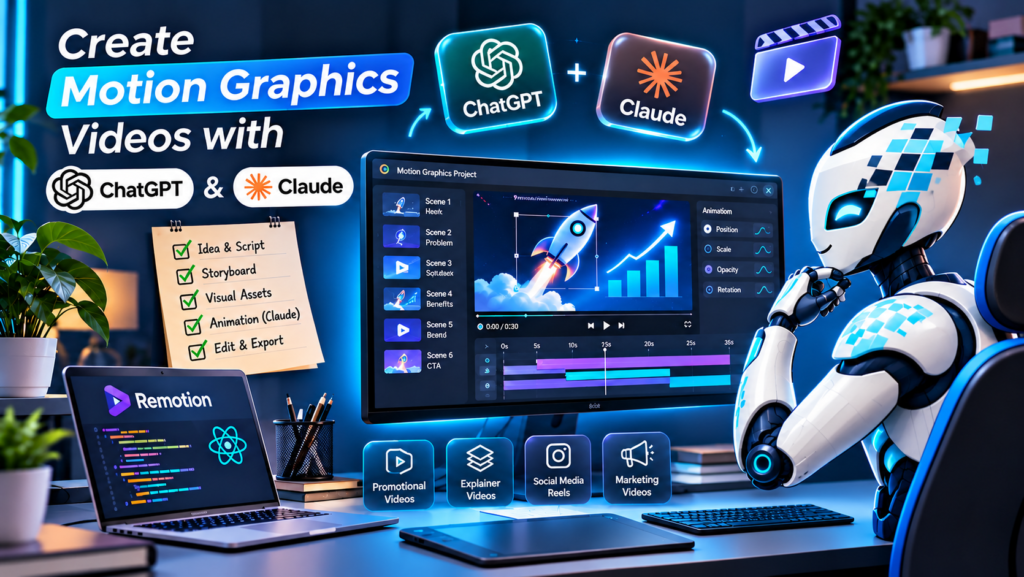
Motion graphics have become an important part of modern digital marketing, social media, advertising, and online branding. From animated social media posts and promotional reels to explainer videos and product advertisements, businesses use motion graphics to communicate ideas in a visually engaging way.
However, creating professional animations traditionally requires design experience, animation software, and considerable production time.
Today, AI tools such as ChatGPT and Claude can make this process much easier. You can use ChatGPT to develop creative ideas, write scripts, plan scenes, and generate visual assets. Claude can help turn those ideas into animation code, interactive designs, and production-ready components.
By combining both tools with animation software such as Remotion, you can build professional-looking motion graphics videos without manually creating every animation from scratch.
In this guide, we will explore how to create motion graphics videos using Claude and ChatGPT, step by step.
1. Understand What Motion Graphics Are
Motion graphics are animated visual elements that communicate information through movement, typography, shapes, illustrations, icons, and transitions.
Unlike traditional video editing, motion graphics focus on bringing graphic elements to life.
Common examples include:
- Animated typography and headlines.
- Logo reveal animations.
- Animated charts and statistics.
- Social media promotional reels.
- Product advertisements.
- Explainer videos.
- Animated icons and illustrations.
- Website hero animations.
Businesses use motion graphics to capture attention, explain services, promote products, and improve their digital presence.
2. Use ChatGPT to Generate Creative Ideas and Video Scripts
The first step in creating a motion graphics video is developing a strong concept.
ChatGPT can help you turn a simple idea into a complete video plan.
You can use it to:
- Generate creative video concepts.
- Write attention-grabbing opening hooks.
- Create short promotional scripts.
- Divide scripts into individual scenes.
- Suggest animation styles and transitions.
- Generate visual descriptions for each scene.
- Plan calls to action.
For example, if you are creating a promotional video for a digital marketing agency, you can ask ChatGPT:
Example Prompt:
“Create a 30-second promotional motion graphics video for a digital marketing agency. Start with a strong hook, explain three business growth services, suggest visual animations for every scene, and finish with a professional call to action. Include scene timing, on-screen text, and animation directions.”
ChatGPT can turn this request into a structured storyboard that you can use during production.
3. Generate Visual Assets with ChatGPT
Once your script and storyboard are ready, the next step is preparing the visual elements.
ChatGPT can generate and edit images that you can use as references or visual assets for your animation.
You can create:
- Background illustrations.
- Character concepts.
- Product mockups.
- 3D-style visual references.
- Icons and graphic elements.
- Social media thumbnails.
- Storyboard images.
For better results, provide clear instructions about the visual style, colors, composition, lighting, and image dimensions.
Example Prompt:
“Create a modern 3D-style illustration for a digital marketing animation. Show a business dashboard with floating analytics icons, upward growth charts, and subtle blue and cyan lighting. Use a clean corporate design with a transparent background. Do not include text or logos.”
You can also upload a reference image and ask ChatGPT to make targeted changes while preserving the important visual details.
For production, check image edges, transparency, proportions, and brand consistency before using the assets.
4. Use Claude to Turn Your Ideas into Animation Code
After preparing your storyboard and visual assets, you can use Claude to help build the actual animation.
Claude can assist with writing code, creating visual components, organizing animation timelines, and refining movement.
For code-based motion graphics, you can work with technologies such as:
- React.
- JavaScript and TypeScript.
- CSS animations.
- SVG animations.
- Canvas.
- Remotion.
Claude can help you create animations such as:
- Text reveal effects.
- Smooth transitions.
- Animated backgrounds.
- Moving icons and illustrations.
- Product showcases.
- Character movement.
- Animated charts.
- Logo reveals.
Example Prompt for Claude:
“Build a professional 30-second motion graphics video using React and Remotion. Follow my attached storyboard and use the provided visual assets. Create separate scenes with smooth transitions, animated typography, scale effects, and synchronized movement. Use a modern blue and white color palette. Keep the animation modular so individual scenes can be edited easily.”
Instead of writing every animation manually, you can describe the desired movement and ask Claude to implement it in code.
Important: Always preview the generated animation and test the code. AI-generated code may need adjustments to timing, positioning, responsiveness, and rendering.
5. Create Animations with Remotion
Remotion is a useful framework for developers who want to create videos programmatically using React.
It allows you to build video scenes using components, animation values, timing, and visual elements.
With Remotion, you can:
- Create videos using React components.
- Control animation timing frame by frame.
- Build reusable animation scenes.
- Animate text, images, shapes, and illustrations.
- Synchronize animations with audio.
- Render complete videos as MP4 files.
For example, you can divide a 30-second promotional video into six scenes, each lasting five seconds.
| Scene | Duration | Animation |
|---|---|---|
| Opening hook | 5 sec | Large animated headline |
| Problem | 5 sec | Moving icons and visual effects |
| Solution | 5 sec | Service illustrations reveal |
| Benefits | 5 sec | Animated statistics and charts |
| Brand introduction | 5 sec | Logo and brand animation |
| Final CTA | 5 sec | Call-to-action reveal |
Claude can help create the Remotion components, while ChatGPT can help refine the storyboard and visual direction.
The advantage is that you can adjust individual scenes without rebuilding the entire video.
6. Add Professional Motion Effects
Good motion graphics are not just about moving objects. The timing, transitions, and visual hierarchy make the animation feel professional.
Here are some effects you can use:
Text Reveal Animation
Make headlines appear through upward movement, opacity changes, or masking effects.
Smooth Scale Transitions
Use controlled zoom-in and zoom-out movements to highlight important elements.
Parallax Effects
Move foreground and background elements at different speeds to create depth.
Animated Icons
Bring icons into the scene using rotation, scale, and position changes.
Shape Transitions
Use circles, rectangles, masks, and geometric shapes to transition between scenes.
Motion Blur
Add subtle motion blur to fast-moving elements where appropriate.
Logo Reveal
Introduce the company logo using a clean, branded animation at the beginning or end of the video.
The key is to use motion effects consistently rather than applying too many different styles in one video.
7. Add Voiceovers, Sound Effects, and Background Music
Audio plays an important role in professional motion graphics.
Even a well-designed animation can feel incomplete without suitable sound.
Consider adding:
- Professional voiceovers.
- Background music.
- Transition sound effects.
- Button click sounds.
- Whoosh effects.
- Subtle impact sounds.
Use music and sound effects that match the mood and pacing of your animation.
Make sure you have the appropriate rights to use any music or audio in commercial projects.
You can also ask ChatGPT to suggest sound effects and timing for each storyboard scene.
8. Review, Render, and Export Your Video
Before exporting the final video, review every scene.
Check the following:
- Is the opening hook engaging?
- Is the text readable?
- Are the animations smooth?
- Are transitions consistent?
- Is the brand identity maintained?
- Is the voiceover synchronized?
- Is the CTA visible?
- Are there any unwanted gaps or overlapping elements?
For social media reels, a common export format is:
- Resolution: 1080 × 1920 pixels.
- Aspect Ratio: 9:16.
- Frame Rate: 30 FPS.
- Format: MP4.
- Codec: H.264.
For YouTube and website videos, 1920 × 1080 pixels with a 16:9 aspect ratio is a common choice.
Choose export settings based on the platform where your video will be published.
9. ChatGPT vs Claude: Which Tool Should You Use?
Both tools can contribute to motion graphics production, but they are useful for different parts of the workflow.
| Task | ChatGPT | Claude |
|---|---|---|
| Creative concepts | Excellent | Excellent |
| Video scripts | Excellent | Excellent |
| Storyboard planning | Excellent | Excellent |
| Visual asset generation | Image generation | Depends on available features |
| Animation code | Can generate code | Can generate and refine code |
| React and Remotion workflow | Useful | Useful |
| Code debugging | Useful | Useful |
| Scene improvements | Useful | Useful |
ChatGPT is particularly useful for creative planning, visual references, scripts, and image generation. Claude is useful for implementing and refining code-based animation workflows.
You do not have to choose only one. Using both tools together can make the production process more organized.
10. Common Mistakes to Avoid
When creating motion graphics with AI, avoid these common mistakes:
- Starting without a storyboard: Plan the scenes before generating animation code.
- Using too many effects: Excessive transitions and movements can distract viewers.
- Ignoring brand consistency: Keep typography, colors, and visual styles consistent.
- Using poor-quality assets: Prepare clean images and properly sized visual elements.
- Ignoring animation timing: Make sure text, audio, and visual transitions are synchronized.
- Skipping the preview: Always review the complete video before exporting.
- Not checking mobile dimensions: Ensure the final animation looks good on smaller screens.
AI can speed up production, but creative direction and quality control still matter.
A Practical AI Motion Graphics Workflow
Here is a simple workflow you can follow for your next video project:
Step 1: Use ChatGPT to generate the concept, script, and storyboard.
Step 2: Generate visual assets and references using ChatGPT Images.
Step 3: Give the storyboard, assets, and animation instructions to Claude.
Step 4: Ask Claude to build the animation using React and Remotion.
Step 5: Preview the animation and request specific improvements.
Step 6: Add voiceovers, music, and sound effects.
Step 7: Render the final video and export it in the required format.
This workflow can be adapted for marketing campaigns, promotional videos, educational content, social media reels, and business presentations.
Conclusion
Creating professional motion graphics no longer has to be a complicated process. By combining ChatGPT for creative planning and visual generation with Claude for coding and animation development, you can turn simple ideas into engaging animated videos.
Tools like Remotion make it possible to build reusable, customizable animations using code, giving you greater control over timing, movement, and visual effects.
However, AI is a creative assistant, not a replacement for good design decisions. The best results come from combining AI capabilities with strong storytelling, thoughtful animation, and consistent branding.
At Brandivs, we believe that creative visuals and smart digital strategies can help businesses communicate better, attract attention, and grow their online presence.
Ready to Make Your Brand Stand Out?
Need professional branding, creative motion graphics, website development, or digital marketing solutions?
Let’s Start Growing with Brandivs.
Website: https://brandivs.com/
Frequently Asked Questions
Can I create motion graphics videos using ChatGPT and Claude?
Yes. ChatGPT can help with scripts, storyboards, visual assets, and creative direction, while Claude can assist with writing animation code and building video scenes.
Do I need coding skills to create AI motion graphics?
Not necessarily. You can use AI tools to help generate code, but understanding basic animation concepts and reviewing the output will improve your results.
What is Remotion?
Remotion is a React-based framework for creating videos programmatically. It allows developers to build animations and render them as video files.
Can I create Instagram Reels using AI?
Yes. You can use ChatGPT for scripts and visual planning, Claude for animation development, and Remotion to render vertical videos in 9:16 format.
Are AI-generated motion graphics suitable for businesses?
Yes. They can be used for promotional campaigns, product demonstrations, explainer videos, advertisements, and social media content. Always review assets, licensing, accuracy, and brand consistency before publishing.